
Pair Bluetooth Headphones with PC
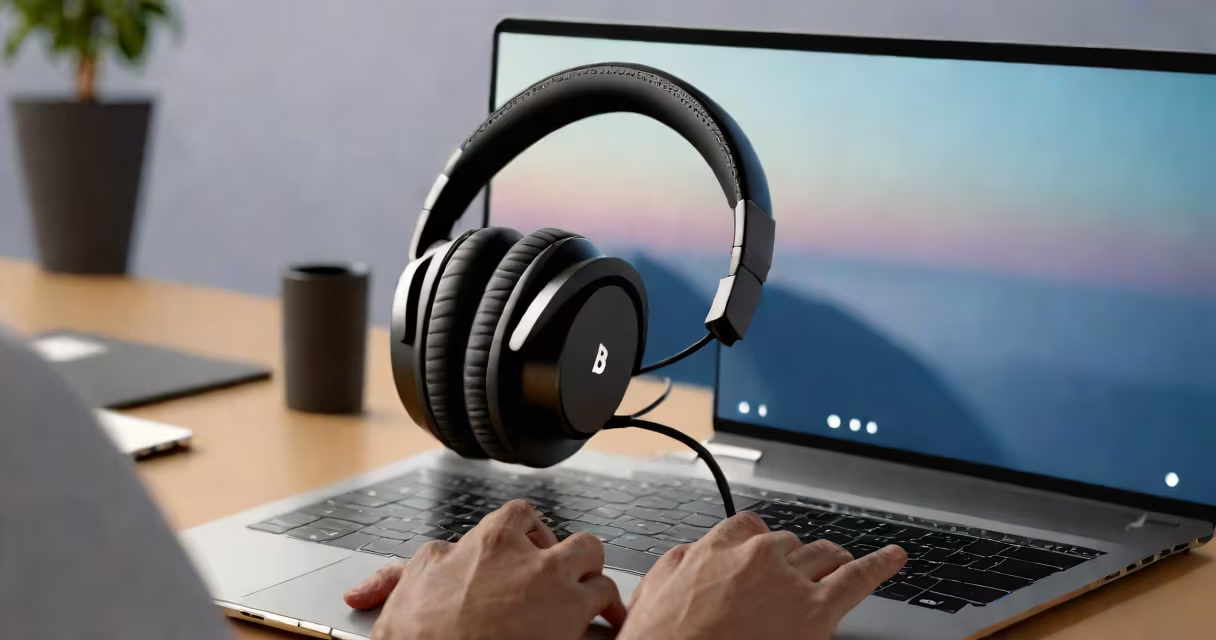
Pairing Bluetooth headphones with a PC connects your audio device wirelessly, enabling hands-free listening and microphone use without cables. This process uses Bluetooth protocols built into modern Windows systems or external USB adapters.
Bluetooth pairing establishes a secure, low-power link between your headphones and PC. The connection transmits audio signals and enables microphone input when supported. Most modern laptops and desktops with Bluetooth capability can complete this task in under five minutes using built-in settings.
For older PCs without native Bluetooth, a USB Bluetooth adapter adds functionality. These cost $10-$25 and support Bluetooth 4.0 or higher for stable audio transmission. Devices like the ASUS USB-BT400 or TP-Link UB400 work reliably with Windows 10 and 11.
How Pairing Works
When you initiate pairing, your PC broadcasts a discovery signal. The headphones enter pairing mode-usually by holding the power button for 5-7 seconds until the LED flashes blue or white. The PC detects the device and prompts for confirmation.
Once confirmed, the PC stores the device's unique identifier (MAC address) and reconnects automatically when both devices are powered on and within range (typically 10 meters). Audio routing happens through the Windows Sound Control Panel, which assigns the Bluetooth device as the default playback and recording source.
Some headphones require a PIN during pairing. Enter 0000 or 1234 if prompted. If the device doesn't appear, restart the Bluetooth service via Task Manager or reboot the PC.
Requirements and Hardware Types
Windows 10 and 11 include native Bluetooth support. To verify compatibility, open Settings > System > Bluetooth & devices. If Bluetooth is listed, your system supports it. Older versions of Windows may require updates or third-party drivers.
There are two hardware paths:
- Integrated Bluetooth: Built into most laptops and newer desktops. No extra hardware needed.
- USB Bluetooth Adapter: Plug-in dongles that enable Bluetooth on systems without it. Must support Bluetooth 4.0 or later for stable audio streaming.
Not all USB adapters work equally well. Some report intermittent disconnections or poor audio quality. The Bluetooth SIG certifies devices that meet performance standards. Look for "Bluetooth 5.0" or "LE Audio" support for better battery life and reduced interference.
| Feature | Integrated Bluetooth | USB Adapter |
|---|---|---|
| Cost | $0 (included) | $10-$25 |
| Range | Up to 10 meters | Up to 10 meters (varies) |
| Audio Quality | High (aptX, LDAC if supported) | Depends on model (some lack advanced codecs) |
| Setup Time | Under 2 minutes | 2-5 minutes (driver install may be needed) |
Common Mistakes and Fixes
One frequent error is assuming the headphones are compatible. Not all Bluetooth headphones support A2DP (audio streaming) or AVRCP (remote control). Check the manufacturer's spec sheet. For example, Sony MDR-ZX110 lacks A2DP and cannot stream music.
Another issue: the PC fails to detect the device. Ensure the headphones are in pairing mode-look for flashing lights. If still undetected, disable and re-enable Bluetooth in Settings. Restart the Bluetooth service via Services.msc if necessary.
Audio may play through speakers instead of headphones. Right-click the speaker icon in the taskbar, select "Open Sound settings," then choose the Bluetooth device under "Output." Set it as default to route audio correctly.
I once spent 20 minutes troubleshooting a JBL Tune 125BT that wouldn't pair. The issue was the headphones' firmware had a bug. Updating via the JBL Headphones app resolved it. Always check for firmware updates through the manufacturer's software.
What It's Often Confused With
People mistake Bluetooth pairing with Wi-Fi connectivity. Bluetooth operates on 2.4 GHz but uses different protocols. It's designed for short-range, low-latency communication-not internet access. You cannot use Bluetooth to browse the web.
Also, pairing is not the same as syncing. Syncing implies continuous data exchange (like calendars or contacts). Pairing only establishes a one-time link for audio and control. After pairing, the devices remember each other unless manually unpaired.
Some assume wired headphones offer better sound quality. While high-end wired models can outperform budget Bluetooth ones, modern codecs like aptX Lossless and LDAC deliver CD-quality audio. A Sennheiser Momentum 4 Wireless with aptX HD delivers 16-bit/48kHz audio-equivalent to lossless MP3s.
Step-by-Step Example
To pair Sony WH-1000XM5 headphones with a Windows 11 laptop:
- Press and hold the power button on the headphones for 7 seconds until the LED flashes white.
- On the PC, go to Settings > Bluetooth & devices > Add device.
- Select "Bluetooth" from the list of options.
- Choose "WH-1000XM5" from the detected devices.
- Confirm the pairing code (if shown) with the default 0000.
- Go to Sound settings and set "Sony WH-1000XM5" as the default output device.
After setup, audio plays through the headphones. The PC remembers the device and reconnects automatically when turned on.
Understanding how to pair Bluetooth headphones with PC unlocks wireless freedom for calls, media, and gaming. The process is reliable when using supported hardware and correct settings.