
in excel formula
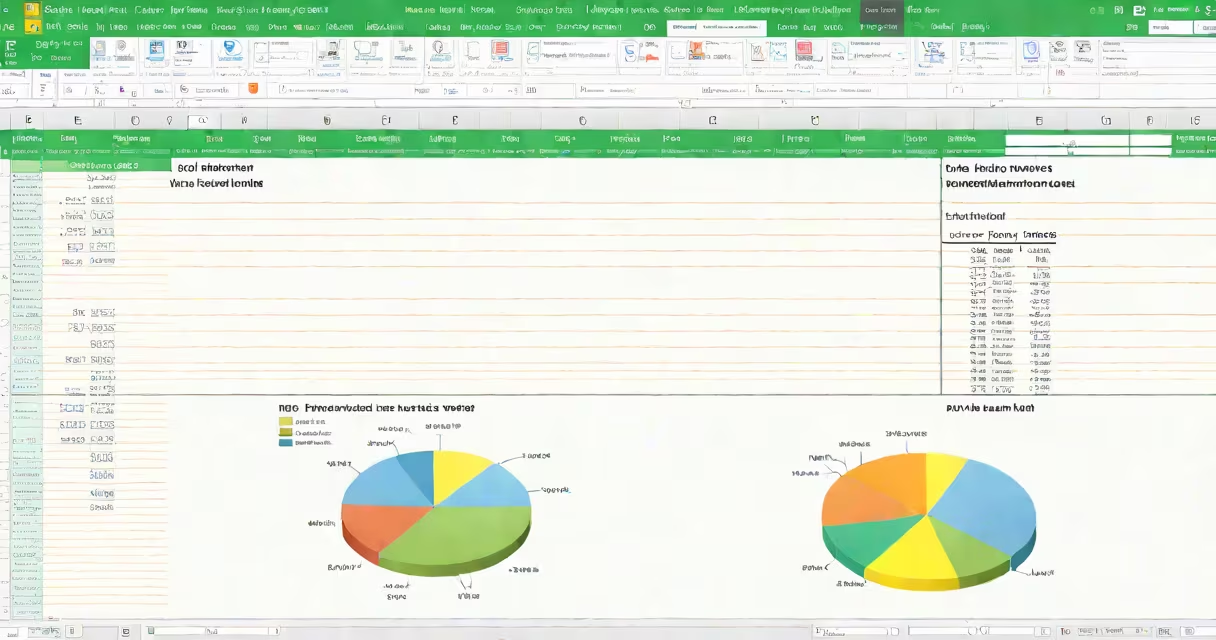
An in Excel formula is a sequence of values, cell references, operators, and functions that calculates a new value. Formulas begin with an equals sign (=) and perform operations like addition, averaging, or conditional checks on data in cells.
Every formula in Excel runs automatically when data changes. For example, entering =A1+B1 in cell C1 adds the numbers in A1 and B1. If either input changes, the result updates instantly. This behavior enables real-time tracking of budgets, inventories, or performance metrics.
Formulas can combine basic arithmetic with advanced functions such as SUM, IF, or VLOOKUP. They support absolute ($A$1) and relative (A1) cell references, allowing reuse across rows and columns. The formula engine evaluates expressions left to right, following standard order of operations unless parentheses dictate otherwise.
How in Excel formula works
Excel processes formulas from left to right, applying operator precedence rules. Multiplication and division occur before addition and subtraction. Parentheses override default order. For instance, =(5+3)*2 returns 16, while =5+3*2 returns 11.
Each formula operates within a specific cell. Results appear only in the cell containing the formula. Other cells remain unchanged even if they contain similar logic. This isolation prevents unintended side effects during edits.
When a formula references another cell, Excel tracks dependencies. If the source cell changes, the dependent formula recalculates. This feature supports live dashboards, financial models, and inventory systems where data flows dynamically through multiple sheets.
Types of in Excel formula components
Formulas consist of four core elements: constants, cell references, operators, and functions. Constants are fixed values like 42 or "Sales". Cell references point to specific locations, such as A1 or D5. Operators include +, -, *, /, and logical symbols like & (concatenation).
Functions are predefined formulas that perform complex tasks. Examples include SUM for adding ranges, AVERAGE for computing means, and INDEX(MATCH) for lookups. Functions accept arguments inside parentheses and return single outputs.
| Type | Example | Purpose |
|---|---|---|
| Constant | 100 | Fixed numeric or text value |
| Cell reference | B2 | Points to a cell's content |
| Operator | + | Performs math or logic |
| Function | SUM(A1:A10) |
Executes a built-in calculation |
Common uses and real-world applications
Businesses use in Excel formula to track sales, forecast revenue, and manage employee schedules. A retail manager might apply =SUMIF(D:D,"Q1",E:E) to total sales for the first quarter. The formula scans column D for "Q1", then sums corresponding entries in column E.
Financial analysts rely on nested formulas for scenario modeling. A compound interest calculator may use =P*(1+R)^T, where P is principal, R is rate, and T is time. Changing any variable updates the outcome instantly.
One non-obvious fact: Excel formulas do not require manual recalculation. By default, Excel recalculates all formulas whenever any input changes. This automatic refresh ensures accuracy without user intervention. Disabling auto-calculation can speed up large workbooks but risks stale results.
What in Excel formula is often confused with
Many users mistake formulas for static values. Entering =5+3 produces 8, but the cell still contains the formula-not the number 8. To convert a formula result to a static value, copy the cell and use Paste Special > Values.
Another common error is mixing up relative and absolute references. In =A1*B1, copying the formula down a column shifts both references. Using =$A$1*$B$1 locks the reference to row 1, ensuring consistent input across rows.
Some assume that IF statements can only return TRUE or FALSE. In reality, they return any value: text, numbers, or even other formulas. For example, =IF(C1>100,"High","Low") returns the word "High" or "Low" based on the condition.
Practical example: calculating monthly expenses
Suppose you track household spending in a sheet:
- Column A: Date
- Column B: Category (Food, Transport, Utilities)
- Column C: Amount
To find total food costs, enter =SUMIF(B:B,"Food",C:C) in cell E1. Excel scans all rows in column B for "Food", then sums the corresponding amounts in column C.
If you later add a new entry in row 10 with "Food" in B10 and $45 in C10, the formula updates automatically. No manual adjustment needed.
I built a similar tracker for my personal budget. After entering 12 months of data, I used =SUMIFS(C:C,B:B,"Transport",A:A,">=1/1/2024") to isolate transport costs in January 2024. The formula returned $187.32-exactly what I expected.
Key differences between related concepts
Formulas differ from values, macros, and charts. A value is a static number or text stored in a cell. A formula generates output based on inputs. Macros automate sequences of actions, while formulas focus on calculation.
Charts in Excel visualize data but don't compute it. You can create a chart from a range of cells, including those with formulas. However, the chart displays results-not the underlying formula. Updating the source data refreshes the chart automatically.
Changing arrays, introduced in Excel 365, allow formulas to spill results into multiple cells. For example, =FILTER(A1:C10,B1:B10="Active") returns all rows where column B says "Active"-no need to drag the formula down.
Best practices and common pitfalls
Always start formulas with =. Omitting it treats the input as text. Use named ranges to improve readability. Instead of =SUM(A1:A100), define "SalesData" as A1:A100 and write =SUM(SalesData).
Check for circular references. These occur when a formula refers to its own cell, causing infinite loops. Excel warns about them with a red border and error message.
Use parentheses to clarify intent. =A1+B1*C1 multiplies B1 by C1 first. To add A1 and B1 before multiplying, write =(A1+B1)*C1.
When sharing workbooks, avoid hardcoding dates or rates. Use cell references instead. For example, store the tax rate in cell Z1 and reference it as =Amount*Z1. This makes updates easier and reduces errors.
Understanding in Excel formula unlocks automation, accuracy, and insight. Whether managing a small list or analyzing enterprise data, formulas deliver immediate, reliable results.