
Check Sound on Computer
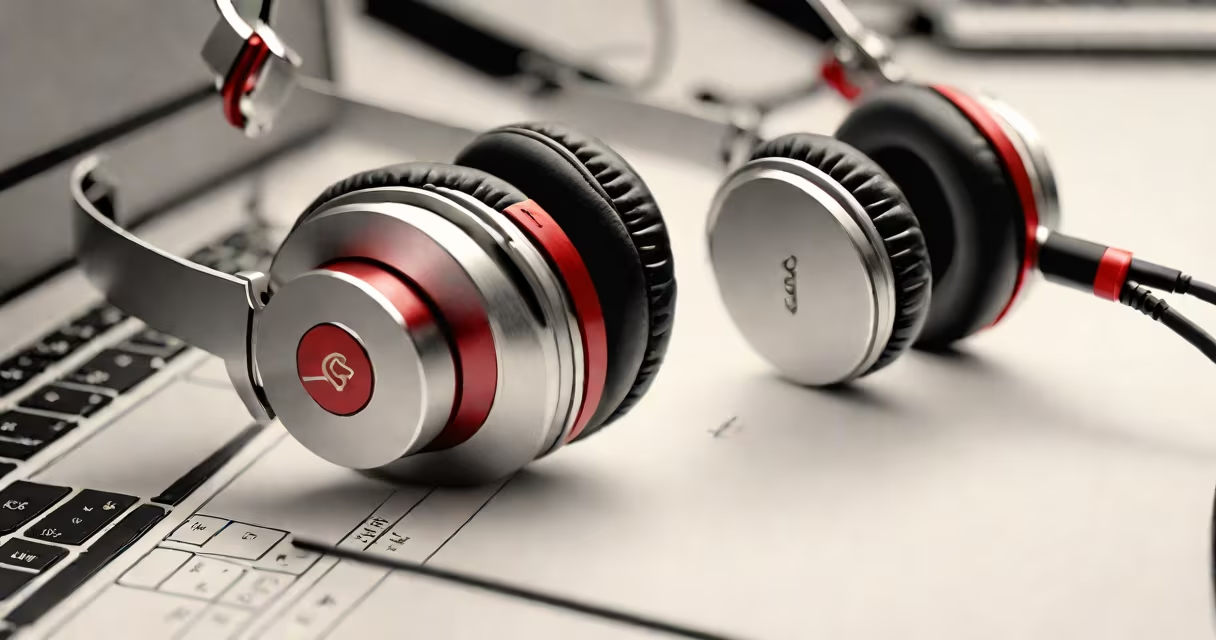
Check sound on computer means diagnosing and resolving issues when audio doesn't play through speakers, headphones, or external devices. This includes verifying audio settings, testing hardware connections, updating drivers, and confirming system-level configurations.
Audio problems on computers often stem from misconfigured settings, outdated drivers, or disconnected hardware. A user may hear no sound during video playback, music, or system alerts. The issue can affect Windows, macOS, or Linux systems, though steps differ by platform.
Common causes include muted volume, disabled audio devices, corrupted driver software, or faulty cables. Identifying the root cause requires checking both software and physical components. For example, a USB headset may work on one port but fail on another due to power delivery issues.
How Check Sound on Computer Works
When you play audio, the operating system routes the signal from an application (like a browser or media player) through the audio stack: application → OS audio service → audio driver → physical output device (speakers, headphones, or soundbar).
If any link in this chain fails, sound stops. The OS maintains a list of available audio devices. If a device is disabled or unplugged, the system may default to a silent output. Software controls like volume sliders, mute toggles, or audio focus settings can interrupt the flow.
Modern systems use audio APIs such as Windows Core Audio, macOS Audio Units, or PulseAudio on Linux. These manage routing, mixing, and device switching. When a device disconnects, the API may not notify the user unless explicitly configured.
What's Involved in Checking Sound
Checking sound involves verifying four layers: physical connection, device detection, driver functionality, and software configuration. Start with the simplest fix: ensure the audio cable is fully inserted or the Bluetooth device is paired.
On Windows, open Settings > System > Sound. Click "Sound control panel" to access the classic mixer. Right-click the speaker icon in the taskbar and select "Open Sound settings." Confirm the correct output device is selected under "Output."
On macOS, go to System Settings > Sound > Output. Choose the desired device from the list. On Linux, use PulseAudio Volume Control (pavucontrol) to verify the active output and check for muted channels.
Types of Audio Issues and Fixes
Audio problems fall into categories based on symptoms. Not all require the same solution. The table below outlines common failure modes and targeted actions.
| Issue Type | Common Cause | Fix Steps |
|---|---|---|
| No sound at all | Muted output, disabled device, or driver crash | Check volume, un-mute device, restart audio service, update drivers |
| Distorted or crackling audio | Outdated drivers, interference, or hardware fault | Update audio drivers, disable audio enhancements, test with different cables |
| Sound cuts out intermittently | Power management, USB port instability, or overheating | Disable USB selective suspend, switch ports, clean fans |
| Microphone not working | Incorrect input device, privacy permissions, or driver error | Select correct microphone in settings, allow app access, reinstall drivers |
For example, a Dell Latitude 5420 user reported no sound after a Windows 11 update. The audio device was listed as "Disabled" in Device Manager. Re-enabling it restored sound. This confirms that driver state changes after updates are common and easily corrected.
Some users assume that a blank audio output list means the hardware is broken. But the list may be empty because the system hasn't detected a connected device. Plug in headphones and wait 10 seconds-Windows often auto-detects new devices after a brief delay.
Where and Why You Need to Check Sound
Users check sound on computer when launching video calls, playing games, watching movies, or using educational software. A student relying on lecture recordings cannot proceed without audio. A remote worker loses productivity during meetings without clear sound.
Businesses depend on consistent audio for training sessions, customer support, and internal communications. A single malfunctioning workstation can disrupt team workflows. IT departments often standardize audio checks as part of onboarding procedures.
For instance, a school district deployed 1,200 Chromebooks with built-in microphones. After rollout, 18% had no audio. Investigation revealed that the default audio profile was set to "Headset" instead of "Internal Mic." Correcting the setting resolved 92% of cases without hardware replacement.
Common Mistakes and Clarifications
Many assume that rebooting always fixes audio. While it resolves temporary glitches, it won't fix a corrupted driver or a broken audio jack. Rebooting is a diagnostic tool, not a cure-all.
Another misconception: "My computer has no sound because the speakers are dead." Physical damage is rare. Most failures occur in software or driver layers. Test with headphones-if they work, the issue is likely software-related.
A non-obvious fact: Windows uses a feature called "Exclusive Mode" to prevent multiple apps from accessing audio hardware simultaneously. If an app requests exclusive access, others are blocked. This can cause audio to stop in background apps even if volume is turned up.
I once debugged a MacBook Pro where sound worked in Safari but failed in Zoom. The issue was Zoom's audio preference set to "Use hardware audio inputs/outputs." Switching to "Automatic" restored functionality. This shows that app-specific settings override system defaults.
Next Steps After Checking Sound
If basic troubleshooting fails, update the audio driver. On Windows, open Device Manager, expand "Sound, video, and game controllers," right-click the audio device, and select "Update driver." Choose "Search automatically for updated driver software."
For laptops, visit the manufacturer's website. Enter your model number and download the latest audio driver. For example, Lenovo ThinkPad T14 users should install the Realtek Audio Driver v6.0.874.1 from the Lenovo Support Portal.
For advanced users, check the system log. On Windows, use Event Viewer to filter logs under "Windows Logs > Application" for entries containing "Audio." Look for errors from "Audiosrv" or "AudioEndpointBuilder." On Linux, run `dmesg | grep -i audio` to find kernel-level messages.
Finally, consider hardware limitations. Some budget laptops lack dedicated audio chips. They rely on the CPU's integrated audio processing, which can struggle with high-bitrate streams. Upgrading to a USB-C audio adapter improves reliability.
Understanding how to check sound on computer prevents unnecessary repairs and saves time. Most issues resolve in under five minutes with the right steps. Always start with volume, device selection, and physical connections before assuming deeper system problems.
When audio remains broken after trying all steps, consult a technician. But most cases don't require professional help. The solution lies in methodical verification of each layer in the audio path.
Knowing how to check sound on computer ensures reliable performance across applications. Whether for work, study, or entertainment, consistent audio depends on accurate diagnostics and timely fixes.