
Why Does My Laptop Keep Freezing
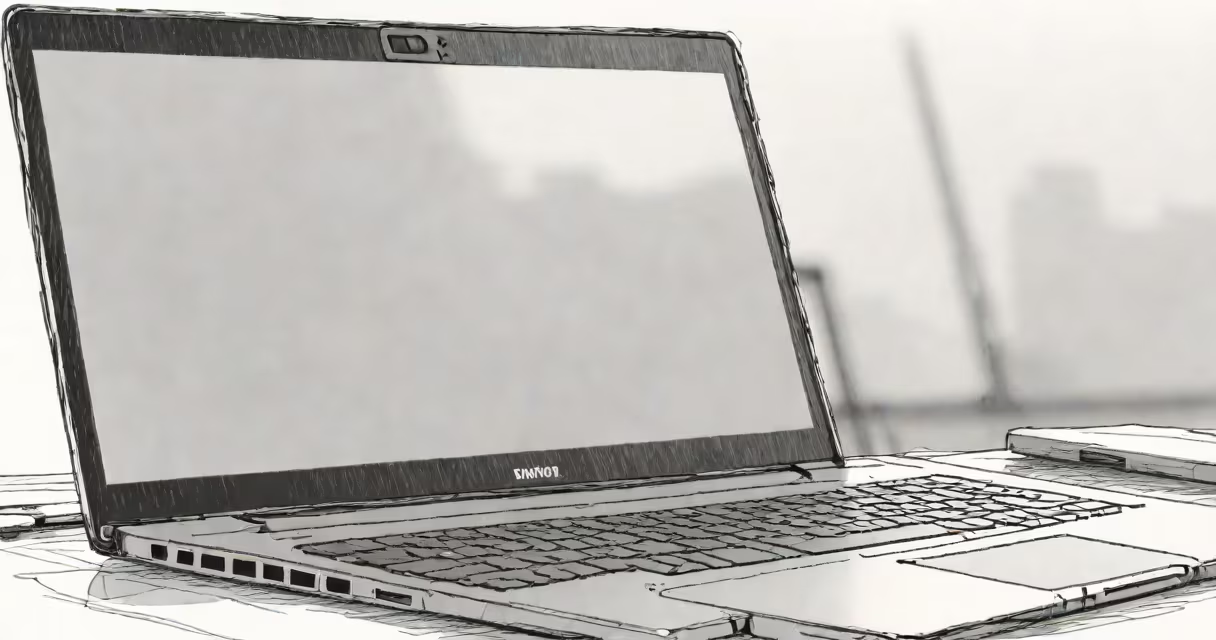
Your laptop keeps freezing when system resources exceed capacity, hardware fails under load, or software conflicts disrupt normal operation. This happens when the processor, RAM, or storage cannot handle current tasks, leading to unresponsive behavior.
Freezing occurs when the operating system halts input processing and stops responding to commands. The screen may lock, the cursor may stop moving, and applications may cease updating. This is different from a crash, which ends the session abruptly. A freeze indicates the system is still running but unable to respond.
Common triggers include high CPU usage from background processes, insufficient RAM during multitasking, or disk thrashing when virtual memory exceeds physical limits. Overheating can cause thermal throttling, which forces the processor to slow down or shut off temporarily. These conditions lead to delays that appear as freezes.
How Freezing Happens
When your laptop runs too many programs simultaneously, it consumes available RAM. Once RAM fills, the OS uses the hard drive or SSD as swap space. Accessing storage is slower than RAM, so the system slows dramatically. If the storage device is nearly full or fragmented, response times degrade further.
For example, opening 15 browser tabs, a video editor, and a virtual machine can push a laptop with 8GB of RAM beyond its limit. The OS begins swapping data between RAM and disk, causing delays. If the disk is mechanical (HDD), this process takes longer than with an SSD, increasing freeze likelihood.
Overheating also causes freezing. Dust buildup in cooling fans reduces airflow. When the CPU reaches 95°C, thermal protection activates and shuts down components to prevent damage. This results in sudden freezes or automatic shutdowns. Monitoring tools like Core Temp show temperature spikes before freezes occur.
Common Causes and Fixes
Software conflicts often trigger freezes. Outdated graphics drivers may fail to render frames properly. Antivirus scans during startup can monopolize disk access. Background updates from Windows Update or macOS Software Update consume CPU cycles unexpectedly.
Hardware issues include failing RAM modules, worn-out SSDs, or degraded battery health. A faulty power adapter can cause voltage fluctuations, leading to instability. For example, a Dell Latitude 5420 with a failing 256GB SSD showed repeated freezes during file transfers. Replacing the drive resolved the issue.
Malware can mimic freezing behavior. A Trojan named "AgentTesla" was found to disable system services and freeze the UI while exfiltrating files. Running a scan with Microsoft Defender or Malwarebytes identified and removed the threat.
| Root Cause | Signs | Fix |
|---|---|---|
| RAM overload | Task Manager shows 95%+ memory usage | Close unused apps; upgrade to 16GB RAM |
| Overheating | Temperatures above 90°C; fan noise increases | Clean dust from vents; use cooling pad |
| Outdated drivers | Screen flickering; app crashes | Update GPU and chipset drivers via Device Manager |
| Full storage | System prompts about low space; slow boot | Delete temporary files; move data to external drive |
One non-obvious factor is power management settings. Windows' "Balanced" power plan may throttle CPU performance to save energy. Switching to "High Performance" improves responsiveness under load. On macOS, enabling "Prevent automatic sleep" in Energy Saver settings stops the system from pausing during intensive work.
I once encountered a MacBook Pro 13-inch (2019) that froze every 15 minutes during video editing. Activity Monitor showed consistent CPU spikes. Disabling unnecessary login items and clearing the system cache resolved the issue. The laptop had 16GB RAM and a 512GB SSD, so hardware wasn't the problem.
What It's Not
Freezing is not the same as crashing. A crash ends a program or system session abruptly. A freeze means the system continues running but doesn't respond. You can't click, type, or switch windows during a freeze.
It's also not always a hardware failure. Many users assume a new laptop should never freeze. But even brand-new systems can freeze due to software bugs. For example, Windows 11 version 23H2 had a known bug causing Explorer to hang during folder navigation. Microsoft released a patch in March 2024 to resolve it.
Some people confuse freezing with screen dimming. Dimming occurs when power-saving features activate. It's not a freeze. You can still interact with the system. Freezing means no interaction is possible until recovery.
When to Seek Help
If freezing persists after basic fixes, check event logs. On Windows, open Event Viewer and look under Windows Logs > System for errors related to "Kernel-Power" or "Application Hang." On macOS, use Console.app to search for "hang" or "freeze" in system logs.
For recurring issues, run diagnostic tools. Windows has built-in Memory Diagnostic and Check Disk utilities. Apple's Apple Diagnostics (hold D during startup) tests hardware components. These tools identify failing RAM, SSD errors, or corrupted system files.
If diagnostics report hardware faults, contact the manufacturer. Dell and Lenovo offer remote support for warranty repairs. AppleCare+ covers accidental damage and hardware defects. Avoid third-party repair shops unless they provide a written guarantee.
Prevention includes regular maintenance. Clean the laptop every six months. Use a compressed air canister to blow dust from vents and keyboard gaps. Uninstall unused programs monthly. Run antivirus scans weekly.
Understanding why your laptop keeps freezing leads to faster resolution. Identify the root cause-overload, overheating, software conflict, or hardware fault-and apply targeted fixes. Most freezes are preventable with routine care and updated software.