
What Are Proxy Server Settings
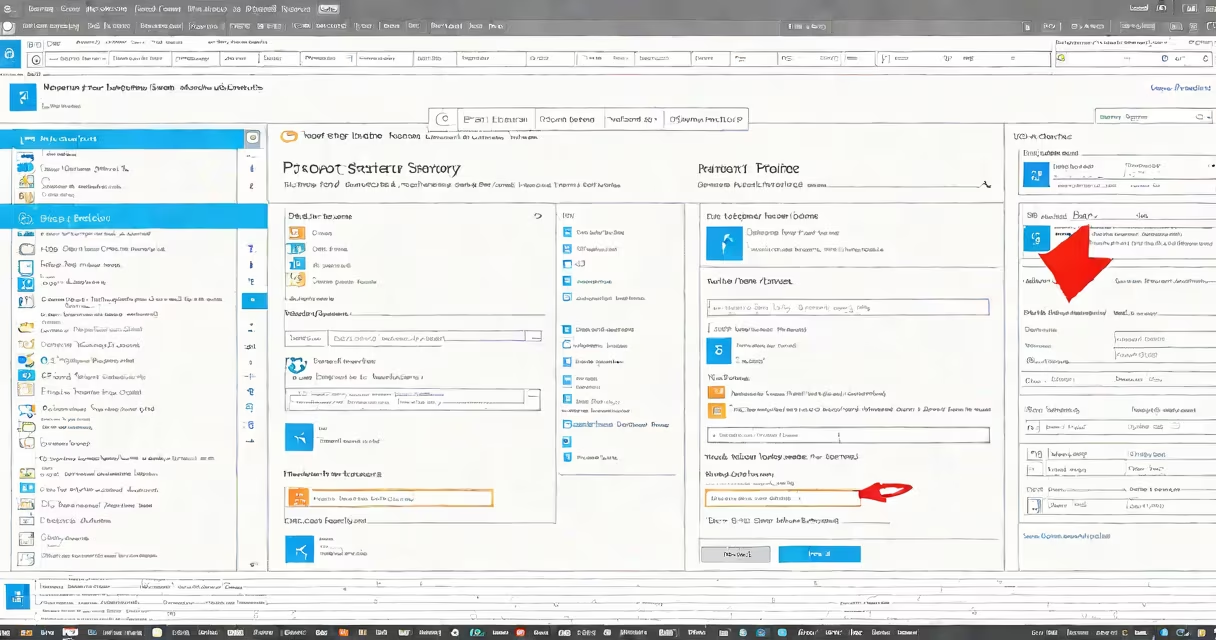
Proxy server settings are configuration values that direct your device to route internet traffic through an intermediary server, which acts as a gatekeeper between your device and the web. These settings control the IP address and port number of the proxy server, along with authentication details if required.
When enabled, your browser or app sends requests to the proxy server instead of connecting directly to websites. The proxy then forwards the request, receives the response, and relays it back to you. This process adds a layer of control, filtering, and anonymity to your online activity.
These settings are typically found in operating system network preferences, browser configurations, or application-specific options. They're used in corporate networks, public Wi-Fi zones, and personal setups to enforce security policies, limit access, or bypass regional restrictions.
How Proxy Server Settings Work
Your device normally connects directly to websites using your public IP address. With proxy server settings enabled, the connection path changes: your device sends a request to the proxy server, which then makes the actual connection on your behalf.
The proxy server can perform several actions. It may filter content based on predefined rules, cache frequently accessed pages to reduce bandwidth usage, or mask your real IP address to improve privacy. Some proxies also log activity for monitoring purposes.
For example, a company might require employees to use a proxy server with settings like http://proxy.corp.local:8080 and a username/password. When an employee opens a website, their browser sends the request to that proxy instead of the destination site. The proxy checks if the site is allowed, logs the visit, and retrieves the page before sending it back.
Types of Proxy Server Settings
Proxy server settings vary depending on the protocol used. The most common types are HTTP, HTTPS, and SOCKS proxies, each suited for different tasks.
| Protocol | Use Case | Settings Example | Security Level |
|---|---|---|---|
| HTTP | Web browsing, basic filtering | http://proxy.example.com:3128 | Low (no encryption) |
| HTTPS | Encrypted web traffic, secure access | https://secure.proxy.org:8443 | High (end-to-end encryption) |
| SOCKS | Streaming, gaming, P2P applications | socks5://proxy.net:1080 | Moderate (depends on client-side encryption) |
HTTP and HTTPS proxies handle web traffic and support authentication. SOCKS proxies operate at a lower network level and can manage any type of traffic, including video streams and peer-to-peer connections. However, they don't inspect or filter content, making them less suitable for filtering policies.
A key distinction often missed: not all proxy servers encrypt data. An HTTP proxy only forwards requests-it doesn't secure them. For encrypted communication, you need HTTPS or a secure tunnel like SSL/TLS. According to the Cisco documentation on SSL VPNs, unencrypted proxy traffic can expose credentials and session data to eavesdroppers on shared networks.
Where and Why They're Used
Organizations deploy proxy server settings to enforce IT policies, monitor user behavior, and protect against malware. Schools, businesses, and government agencies commonly use centralized proxy configurations to restrict access to social media, adult content, or high-bandwidth sites during work hours.
For example, a university might set up a proxy server at http://proxy.univ.edu:8080 and require students to configure their devices with these settings. The proxy logs all visited URLs and blocks access to known phishing domains. This setup reduces the risk of malware infections and ensures compliance with acceptable use policies.
Individual users also benefit. A traveler in a country with strict internet censorship might use a proxy server with settings like socks5://proxy.global.net:1080 to access blocked news sites. In this case, the proxy hides the user's location and routes traffic through a server in a permitted region.
Another common use is bypassing geo-restrictions on streaming services. Some users manually configure proxy settings to appear as if they're accessing content from a different country. However, many platforms now detect and block such methods, especially when combined with DNS leaks or unverified proxy providers.
Common Confusions and Corrections
Many people assume that using proxy server settings automatically provides privacy or security. That's incorrect. A proxy only hides your IP address from the destination website-not from your ISP or the proxy operator itself. If the proxy is run by a third party, it can still see all your traffic.
Proxy server settings are not the same as a Virtual Private Network (VPN). While both route traffic through a remote server, a VPN encrypts all data-including traffic from apps and background processes-whereas a proxy only affects specific applications or browser sessions. As noted by SANS Institute research on network security, relying solely on proxy settings for protection leaves users exposed to man-in-the-middle attacks on unsecured networks.
Another misconception: proxy settings apply globally across all apps. In reality, some apps ignore system-wide proxy configurations. A mobile app might connect directly to its backend regardless of OS-level proxy settings. Always verify that the intended app respects the proxy configuration.
I once configured proxy settings on a Windows machine for a project involving automated web scraping. I entered the correct IP and port, but the script failed until I realized the proxy required NTLM authentication. After adding the username and password, the connection succeeded. This taught me that even correct syntax isn't enough-you must match the authentication method expected by the proxy server.
Setting Up Proxy Server Settings
To configure proxy server settings on Windows:
- Go to Settings > Network & Internet > Proxy.
- Select "Manual proxy setup" and enter the proxy server address and port.
- If required, enter the username and password for authentication.
- Save and test the connection.
On macOS:
- Open System Settings > Network > Wi-Fi (or Ethernet).
- Click "Details" and go to the Proxies tab.
- Check "Web Proxy (HTTP)" and enter the server and port.
- Repeat for HTTPS and SOCKS if needed.
Browsers like Chrome and Firefox have their own proxy settings under "Network" or "Advanced" tabs. These override system settings when enabled.
Always confirm the proxy server is trusted. Using an unknown proxy can lead to data theft or malware injection. Check with your network administrator if you're unsure about the correct settings.
Understanding what are proxy server settings clarifies how traffic flows through intermediaries. These settings aren't just technical entries-they're tools for control, privacy, and policy enforcement. Knowing how they work prevents misconfiguration and strengthens digital safety.