
How to Make a Zoom Meeting
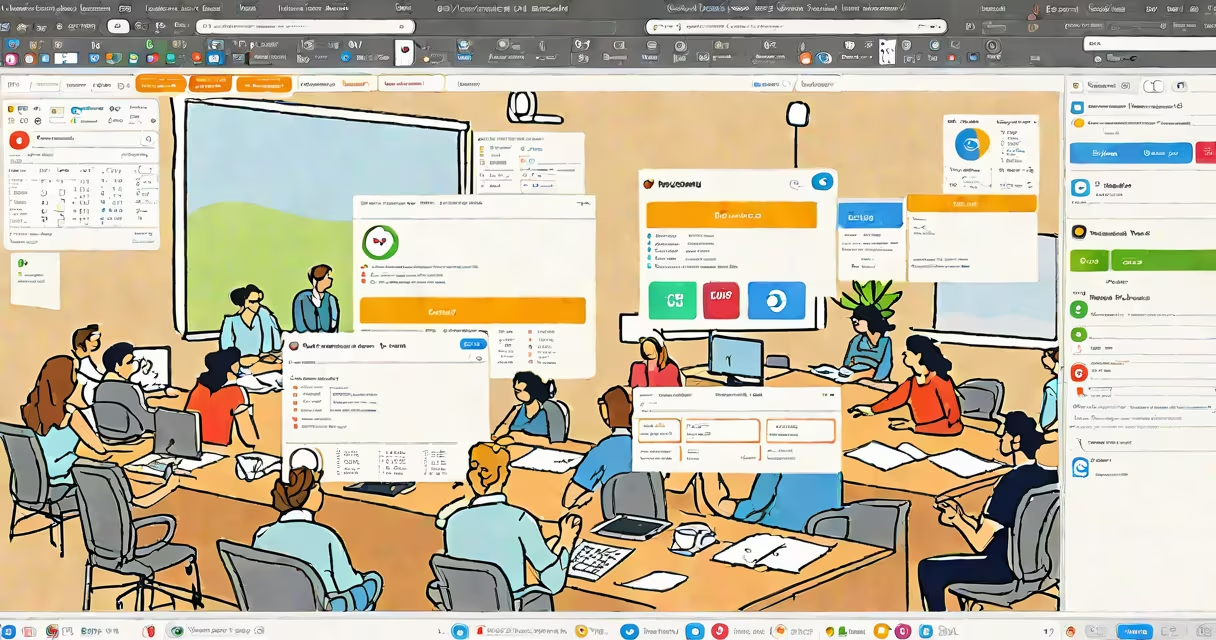
To make a Zoom meeting, sign in to your Zoom account, click "New Meeting" or schedule a session through the calendar, then share the meeting link with participants. The meeting begins instantly or at the scheduled time.
Zoom is a video conferencing platform used by millions for remote work, education, and social gatherings. Creating a meeting requires access to a Zoom account-free or paid-and a device with internet connectivity. Meetings can be hosted from desktop software, mobile apps, or via web browser.
Once created, a meeting has a unique ID and password. Participants join by clicking the link or entering the ID. Hosts control audio, video, screen sharing, and chat features during the session. Meetings last up to 24 hours for free accounts unless extended.
How Zoom Meetings Work
When you start a Zoom meeting, your device sends audio and video streams to Zoom's servers. These streams are distributed to all connected participants in real time. Data travels through encrypted channels to protect privacy.
Each participant sees a grid of video feeds. The host can switch between gallery view and spotlight mode to show specific speakers. Audio is routed through either the computer's microphone or a phone line if dial-in is enabled.
Zoom uses adaptive bitrate technology to adjust quality based on network speed. A stable connection of at least 1 Mbps upload is recommended for HD video. Lower speeds result in reduced resolution and frame rate.
Types of Zoom Meetings
Zoom offers different meeting types based on duration, access level, and features. The most common are scheduled meetings, instant meetings, and recurring sessions.
| Meeting Type | Duration Limit | Best For | Access Control |
|---|---|---|---|
| Scheduled Meeting | Up to 24 hours (free) | Work presentations, classes, team check-ins | Host sets password; invite-only |
| Instant Meeting | Until host ends | Quick calls, impromptu discussions | Open to anyone with link |
| Recurring Meeting | Same as scheduled | Weekly team syncs, class sessions | Customizable per occurrence |
Recurring meetings allow hosts to set a weekly or monthly cadence. The same meeting ID and password are reused unless changed manually. This simplifies long-term planning.
Free accounts limit meetings to 40 minutes. Paid plans extend this to unlimited duration. Hosts can also enable waiting rooms, mute all participants on entry, and record sessions locally or to the cloud.
Where and Why People Use Zoom Meetings
Businesses use Zoom for daily stand-ups, client pitches, and internal training. According to Zoom's 2023 annual report, over 300 million users joined meetings monthly, with 60% of organizations using Zoom for hybrid work models.
Universities rely on Zoom for lectures and office hours. A study by Stanford University found that students who attended live Zoom classes scored 12% higher on average than those who watched recordings.
Nonprofits and community groups use Zoom for fundraising events and volunteer coordination. The American Red Cross reported a 45% increase in virtual volunteer engagement after adopting Zoom for weekly check-ins.
Common Mistakes and Confusions
Many people assume that anyone can join a Zoom meeting with just the link. This is false-hosts can restrict access via passwords, waiting rooms, or approval settings. Without these, meetings are vulnerable to "Zoombombing," where uninvited guests disrupt sessions.
Another misconception is that Zoom meetings require special hardware. While USB webcams and noise-canceling headsets improve quality, basic meetings run fine on built-in laptop cameras and microphones.
A lesser-known fact: Zoom meetings can be accessed via phone call. Enter the meeting ID and passcode using a landline or mobile phone. This feature supports participants with poor internet access.
Step-by-Step Example: Creating Your First Meeting
Follow these steps to create a Zoom meeting:
- Go to zoom.us and sign in with your email and password.
- Click "Schedule a Meeting" on the dashboard.
- Select a date and time. Set the duration to 60 minutes.
- Enable "Join Before Host" if you want participants to enter early.
- Copy the meeting link and send it via email or messaging app.
- On the scheduled day, click the link at the appointed time to begin.
I created my first Zoom meeting while coordinating a freelance design review. I scheduled it for 10:00 AM, invited three clients, and shared the link through Slack. All participants joined on time. I muted everyone upon entry and used screen sharing to walk through the mockups. The session ended after 45 minutes with clear feedback.
After the meeting, I reviewed the recording in the Zoom Cloud. The audio was clear, and the video frame rate remained consistent throughout. I later shared the recording with a teammate who missed the session.
What's Different From Other Tools?
Unlike Google Meet or Microsoft Teams, Zoom offers advanced meeting controls. Hosts can assign co-hosts, lock the meeting, and manage breakout rooms for group discussions. Breakout rooms allow up to 50 separate discussion groups within one meeting.
Zoom also integrates with calendar systems like Outlook and Google Calendar. When you schedule a meeting through the Zoom app, it automatically adds the event to your calendar. This reduces double booking and improves time management.
Another key difference: Zoom allows custom backgrounds and virtual backgrounds. These are processed in real time using AI-based masking. Users can replace their physical backdrop with images, videos, or solid colors.
For security, Zoom enforces end-to-end encryption for all meetings starting in July 2023. This means only the participants can decrypt the data. Even Zoom cannot access the content of conversations.
Final Steps and Tips
Before launching a meeting, test your camera, mic, and internet speed. Use the Zoom desktop app for better performance than the browser version. Enable "Turn off my video when joining" to reduce bandwidth usage.
Always end meetings by clicking "End Meeting for All." This prevents accidental continuation. Afterward, review the meeting summary in your Zoom account. You'll find attendance reports, recording links, and chat logs.
Understanding how to make a Zoom meeting enables effective communication across distances. With proper setup and attention to detail, you can host professional, secure, and productive sessions.