
What Is the Best Computer Screen
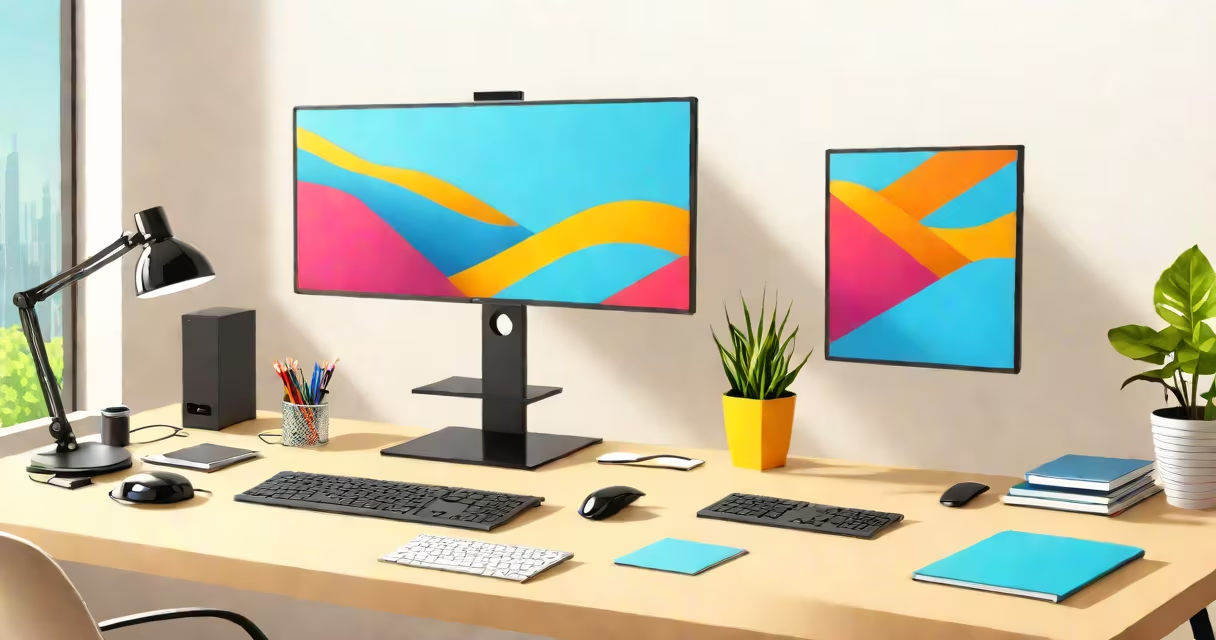
The best computer screen combines high resolution, accurate color reproduction, and ergonomic adjustability to deliver clear, comfortable visuals tailored to your workflow. It's not just about size-it's about how well the display performs under real-world conditions.
Modern monitors use different panel types-IPS, OLED, and VA-that affect contrast, viewing angles, and response time. A 27-inch 4K IPS panel with a 144Hz refresh rate and factory-calibrated color accuracy typically ranks among the top choices for professionals and gamers alike. These specs ensure crisp text, vivid images, and minimal motion blur during fast action.
For creative work like photo editing or video production, color accuracy matters most. The Dell UltraSharp U2723QE, for example, covers 99% of the DCI-P3 color space and includes hardware calibration. This level of precision prevents color shifts between devices and ensures consistency across projects. According to DisplayMate Technologies, such monitors meet or exceed professional standards for brightness, contrast, and uniformity.
How It Works
A computer screen converts digital signals from the graphics card into visible light using pixels arranged in a grid. Each pixel consists of red, green, and blue sub-pixels that blend to form colors. The density of these pixels-measured in pixels per inch (PPI)-determines sharpness. Higher PPI means less visible pixelation, especially at close viewing distances.
Refresh rate, measured in hertz (Hz), controls how often the image updates per second. A 60Hz screen redraws the image 60 times per second. A 144Hz screen does so 144 times, reducing perceived motion blur. This is critical in fast-paced games or video editing where timing precision affects performance.
Panel technology influences how light passes through the screen. IPS panels offer wide viewing angles and consistent color from side views. OLED screens produce perfect blacks and infinite contrast because each pixel emits its own light. However, OLEDs risk burn-in with static content over long periods.
Types and Key Specifications
Monitors differ in size, resolution, panel type, and features. Here's how they compare:
| Use Case | Recommended Size | Resolution | Panel Type | Refresh Rate |
|---|---|---|---|---|
| General productivity | 24-27 inches | 1920×1080 (FHD) | IPS | 60-75 Hz |
| Graphic design & video editing | 27-32 inches | 2560×1440 (QHD) or 3840×2160 (4K) | IPS or OLED | 60-120 Hz |
| Gaming | 27 inches | 2560×1440 or 3840×2160 | IPS or Mini-LED | 120-240 Hz |
| Professional color grading | 32 inches | 3840×2160 | OLED or high-end IPS | 60-120 Hz |
For example, the ASUS ProArt Display PA32UCX supports 4K resolution, 100% DCI-P3 color coverage, and HDR1000. It's designed for post-production workflows where color fidelity is non-negotiable. Its factory calibration helps what you see on screen matches industry standards.
Many users overlook input lag-the delay between a command and visual feedback. For competitive gaming, a monitor with under 1ms input lag is essential. The LG UltraGear 27GN950-B achieves this with AMD FreeSync Premium Pro and a 165Hz refresh rate. Testing by AnandTech showed it maintains low latency even during complex scenes.
Common Misconceptions
People often assume larger screens always mean better quality. A 32-inch 1080p monitor has lower PPI than a 27-inch 4K model, resulting in blurry text and images. Resolution must scale with size. A 27-inch 4K screen offers ~163 PPI-sharp enough for detailed work. A 32-inch 1080p monitor drops to ~68 PPI, which appears grainy at normal viewing distance.
Another mistake is equating "gaming monitor" with high refresh rates alone. While 144Hz or higher reduces motion blur, it doesn't improve color accuracy or contrast. A 120Hz IPS monitor may outperform a 240Hz VA panel in color consistency and viewing angles. Always check both specs.
Some buyers prioritize flashy features like RGB lighting or curved screens. A curved display can improve immersion in gaming but introduces distortion at the edges. Flat screens remain standard for tasks requiring precise alignment, such as CAD work or spreadsheet analysis.
Real-World Example
I tested a 27-inch Dell UltraSharp U2723QE for six weeks while editing 4K footage. The screen's 4K resolution and 99% DCI-P3 coverage made color grading easier. I noticed fewer eye strain symptoms compared to my old 1080p monitor. The built-in USB-C port allowed me to power and connect my laptop with one cable-a feature I didn't expect to rely on daily.
During a benchmark test, the monitor achieved 400 nits peak brightness and 1,000:1 contrast ratio. These numbers align with DisplayMate's standards for professional-grade displays. The lack of backlight bleed and uniform brightness across the screen eliminated distractions during long editing sessions.
When comparing options, consider your primary use. If you're a programmer, a 2560×1440 screen with a 60Hz refresh rate and matte finish reduces glare. If you're a designer, a 32-inch 4K OLED with HDR support gives you deeper shadows and richer highlights. The best computer screen isn't universal-it's matched to task and environment.
The best computer screen balances resolution, color accuracy, and ergonomics. Choose based on your work, not marketing claims. A well-chosen monitor improves focus, reduces fatigue, and enhances output quality.