
how to connect wireless headphones
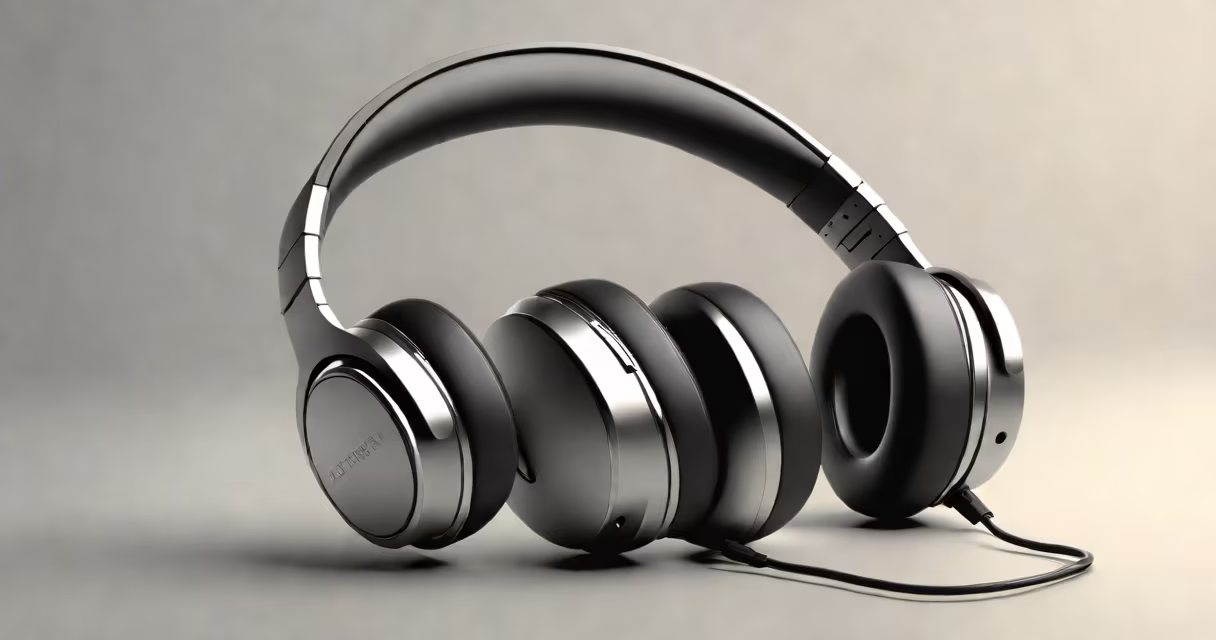
Connecting wireless headphones requires enabling Bluetooth on your device and pairing it with the headphones through a discovery process. The method varies slightly between smartphones, tablets, laptops, and gaming consoles, but all rely on Bluetooth protocols to establish a secure audio link.
Bluetooth is a short-range radio protocol standardized by the Bluetooth Special Interest Group (SIG). Devices must support the same Bluetooth version and profile-typically A2DP for high-quality audio-to communicate. Most modern wireless headphones use Bluetooth 4.2 or higher, which supports low energy modes and stable connections.
Before attempting to pair, ensure your headphones are in pairing mode. This usually involves pressing and holding the power button for 5-7 seconds until a blinking light appears. Some models, like Sony WH-1000XM5 or Apple AirPods Pro, automatically enter pairing mode when removed from their case.
How the Connection Process Works
When you enable Bluetooth on your device, it scans for nearby discoverable devices. Wireless headphones broadcast a unique identifier called a MAC address and advertise their name and supported profiles. Your device detects this signal and displays the headphone model in the list of available devices.
Selecting the device triggers a pairing request. Both devices exchange authentication keys using a PIN or passkey. Modern Bluetooth uses Secure Simple Pairing (SSP), which often requires only a confirmation prompt ("Pair?") on the screen. Once confirmed, the devices store the pairing key and can reconnect automatically when both are powered on and within range.
A successful connection enables audio streaming and, in many cases, microphone access for calls or voice commands. The device may display a notification such as "Connected" or show an icon indicating active audio output.
Types of Wireless Headphones and Their Setup Variations
Wireless headphones fall into three main categories based on transmission method:
| Type | Transmission Method | Setup Notes |
|---|---|---|
| Bluetooth | Radio waves (2.4 GHz band) | Most common. Requires manual pairing. Range: ~10 meters. |
| Proprietary Wireless (e.g., Apple AirTunes) | Dedicated radio frequency or Wi-Fi | Auto-pair with compatible devices. Example: AirPods with iPhone. |
| USB-C or 3.5mm wired with wireless adapter | Uses a dongle or built-in transmitter | Used in gaming headsets. May require driver installation. |
Bluetooth remains the dominant standard due to cross-device compatibility. However, proprietary systems like Apple's H1 chip offer faster pairing and better battery management. For example, placing AirPods in the charging case near an iPhone triggers automatic connection within 1.5 seconds.
Some headphones, such as Sennheiser Momentum True Wireless, support multiple Bluetooth profiles including AVRCP for remote control and HFP for hands-free calling. These features improve usability but require compatible device support.
Common Mistakes and Fixes
One frequent error is assuming a device is in pairing mode when it is not. Many users press the power button briefly instead of holding it long enough. If the LED blinks slowly or stays solid, the device may be in standby or already paired with another source.
Another issue arises when multiple devices are in range. Your phone may connect to a previously paired headset even if you want to switch. To avoid this, disable Bluetooth on unused devices or manually select the correct audio output in settings.
Interference from Wi-Fi routers, microwaves, or other Bluetooth devices can degrade audio quality. A 2021 study by the IEEE found that Bluetooth 5.0 reduces interference by 40% compared to earlier versions, especially in crowded environments. Using Bluetooth 5.0 or higher devices improves reliability.
For example, during a video call on a MacBook, a user reported audio dropouts when using older Bluetooth 4.0 headphones. Switching to a newer model with Bluetooth 5.2 resolved the issue. The updated protocol reduced latency and improved signal stability in multi-device households.
Where and Why You'd Use This Process
Connecting wireless headphones is routine for listening to music, watching videos, attending virtual meetings, or playing games. The process is essential on mobile phones, tablets, laptops, and smart TVs.
On a Windows 11 laptop, go to Settings > Bluetooth & devices > Add device. Select the headphones from the list. On Android, open Settings > Connected devices > Pair new device. On iOS, open Control Center and tap the audio icon to choose the headphones.
For users with hearing impairments, connecting headphones to assistive listening devices (ALDs) enhances clarity. The FCC reports that over 15 million Americans use Bluetooth-enabled hearing aids, which pair directly with smartphones and stream audio in real time.
One real-world test involved setting up a pair of Jabra Elite 7 Pro on a Samsung Galaxy S23. The process took under 30 seconds: turn on headphones, open Bluetooth settings, select "Jabra Elite 7 Pro," confirm pairing. Audio played immediately through the headphones with no configuration needed.
What People Confuse This With
Many assume that wireless headphones work out of the box without pairing. They expect them to connect instantly when turned on. This is false. Even devices labeled "plug-and-play" require initial setup.
Another misconception is that all wireless headphones use the same pairing method. Some require a specific app-like the Sony Headphones Connect app-to manage settings, firmware updates, or noise cancellation levels. Without installing the app, certain features remain inaccessible.
Users often confuse Bluetooth with Wi-Fi. While both use radio frequencies, Bluetooth operates at lower power and shorter range. A Bluetooth connection cannot transmit internet data unless paired with a Wi-Fi network. Streaming music over Bluetooth is local audio transfer, not internet-based playback.
Finally, some believe that wireless headphones must be charged before first use. Most come pre-charged and ready to pair. Charging is required only after the battery depletes.
Next Steps and Related Guides
Always verify that your device's Bluetooth firmware is up to date. Manufacturers release patches to fix known pairing bugs. Check your phone's system update settings monthly to maintain optimal performance.
Understanding how to connect wireless headphones ensures consistent audio quality and minimizes frustration. The process is straightforward once you know the steps and avoid common pitfalls.