
Device Manager This PC
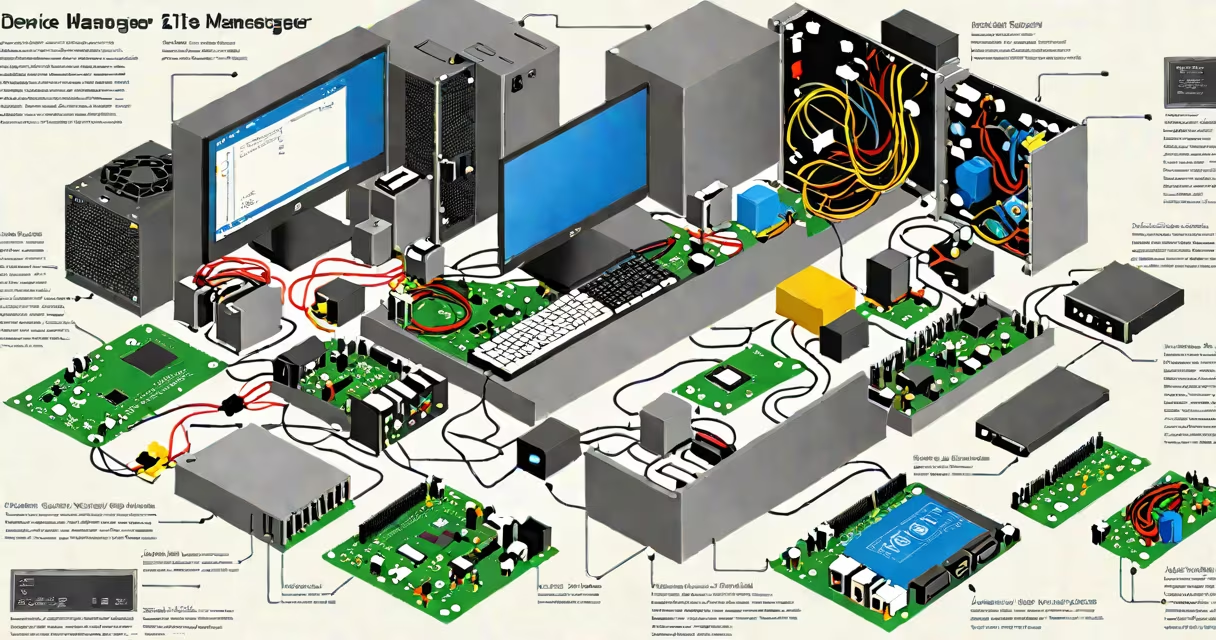
Device Manager This PC is a built-in Windows utility that lists all hardware devices connected to your computer, displays their status, and allows you to manage drivers, enable or disable devices, and troubleshoot hardware problems.
Accessed through the Control Panel or via the Run command, Device Manager provides a hierarchical view of installed hardware, including USB controllers, graphics cards, network adapters, and storage devices. It's essential for diagnosing hardware conflicts, updating outdated drivers, and resolving issues like missing peripherals or system crashes linked to faulty hardware.
For example, if your laptop's Wi-Fi stops working after a Windows update, Device Manager shows the wireless adapter as "Not working" under Network adapters. Right-clicking it offers options to update the driver, roll back changes, or disable the device entirely. This interface is critical for both casual users and IT professionals managing Windows systems.
How Device Manager This PC Works
Device Manager runs as part of the Windows operating system and pulls data from the Windows Hardware Abstraction Layer (HAL) and Plug and Play (PnP) services. When you boot your computer, Windows scans for hardware and loads corresponding drivers. Device Manager displays the results of that scan and tracks whether each device is functioning correctly.
Each device appears under a category such as "Display adapters," "Sound, video and game controllers," or "Universal Serial Bus controllers." Expanding a category reveals individual devices. Status icons indicate functionality: a green checkmark means the device is working; a yellow warning triangle signals a problem.
When you right-click a device, you can perform actions like updating the driver, uninstalling the device, disabling it, or viewing properties. These operations modify the registry entries associated with the device and trigger Windows' PnP manager to re-evaluate the hardware state.
Types of Devices Managed
Device Manager organizes hardware into logical categories. The most common ones include:
| Category | Common Devices | Typical Issues |
|---|---|---|
| Display adapters | NVIDIA GeForce, AMD Radeon, Intel UHD Graphics | Screen flickering, no display output, driver crashes |
| Sound, video and game controllers | Onboard audio chip, USB sound card, gamepad | No audio, microphone not detected, controller unresponsive |
| Network adapters | Ethernet NIC, Wi-Fi adapter, Bluetooth module | Internet connection lost, Wi-Fi not showing, Bluetooth pairing failure |
| USB controllers | USB 2.0/3.0 ports, hubs, external drives | Device not recognized, slow transfer speeds, intermittent disconnects |
Some devices appear under "Other devices" when Windows cannot identify them or load the correct driver. A generic name like "Unknown device" often indicates a missing or corrupted driver. Right-clicking and selecting "Update driver" prompts Windows to search online or from local files.
One lesser-known feature: hidden devices. By enabling "Show hidden devices" in the View menu, you can see devices that were previously removed or disabled. This helps recover accidentally uninstalled hardware or clean up leftover entries after hardware swaps.
Where and Why It's Used
Device Manager This PC is used daily by system administrators, support technicians, and advanced users to resolve hardware-related issues. It's especially useful during troubleshooting workflows involving blue screen errors, device failures, or unexpected system behavior.
For example, a user reported that their external monitor stopped working after a Windows 11 update. Using Device Manager, they discovered the Display adapter was listed as "Disabled." Re-enabling it restored the external display. Without this tool, diagnosing the issue would have required reinstalling the graphics driver or checking BIOS settings manually.
It's also key during driver updates. Microsoft recommends using Device Manager to update drivers rather than relying solely on Windows Update, which may install outdated or incompatible versions. Manually downloading the latest driver from a manufacturer's website and installing it via Device Manager ensures optimal performance and compatibility.
Common Confusions and Corrections
Many users confuse Device Manager with the "Add or remove programs" feature in Settings. While both manage software, Device Manager handles hardware and drivers, not installed applications. Installing a printer driver doesn't appear in Device Manager unless the physical device is connected.
A frequent mistake is assuming that disabling a device removes it permanently. Disabling a device only turns off its function until re-enabled. Uninstalling a device deletes its driver and configuration, but Windows may reinstall it upon reboot if the hardware is still present.
Another misconception: Device Manager can fix all hardware problems. It cannot repair physical damage, such as a broken USB port or a failed GPU. If a device shows "This device is not working properly," and updating the driver fails, the issue likely lies in hardware failure or a deeper system conflict.
I once encountered a case where a user's keyboard stopped responding. Device Manager showed the keyboard under "Human Interface Devices" with a yellow triangle. After updating the driver from the manufacturer's site, the keyboard worked again. This confirmed that the issue wasn't hardware-related but a missing or outdated driver-a fix only Device Manager makes accessible.
Best Practices and Tips
Always back up your system before making changes in Device Manager. Use System Restore points to revert if a driver update causes instability. Avoid updating drivers from third-party websites-stick to official sources to prevent malware or system corruption.
Use the "Scan for hardware changes" option under the Action menu to refresh the list after adding new hardware. This avoids delays in device detection.
For advanced users, exporting device configurations via PowerShell commands can automate setup across multiple machines. The Get-PnpDevice cmdlet lists all devices, and Set-PnpDevice can enable or disable them programmatically.
When troubleshooting audio issues, check both "Sound, video and game controllers" and "Audio inputs and outputs" categories. A missing audio device may appear under "Other devices" if the driver failed to install properly.
Related Tools and Resources
Device Manager This PC integrates with other Windows tools. For instance, Event Viewer logs hardware errors that align with Device Manager warnings. Checking the System log for error codes like "0x80070002" can pinpoint driver installation failures.
Device Manager This PC is not a standalone application-it's a core component of Windows. Its design reflects decades of evolution in hardware abstraction and plug-and-play standards. Understanding it improves your ability to maintain stable, high-performing systems.
Use it regularly to stay ahead of hardware issues. Check for unknown devices monthly. Update drivers quarterly. Keep your system running smoothly and avoid unexpected failures.