
Best Ways to Manage Multiple Desktops
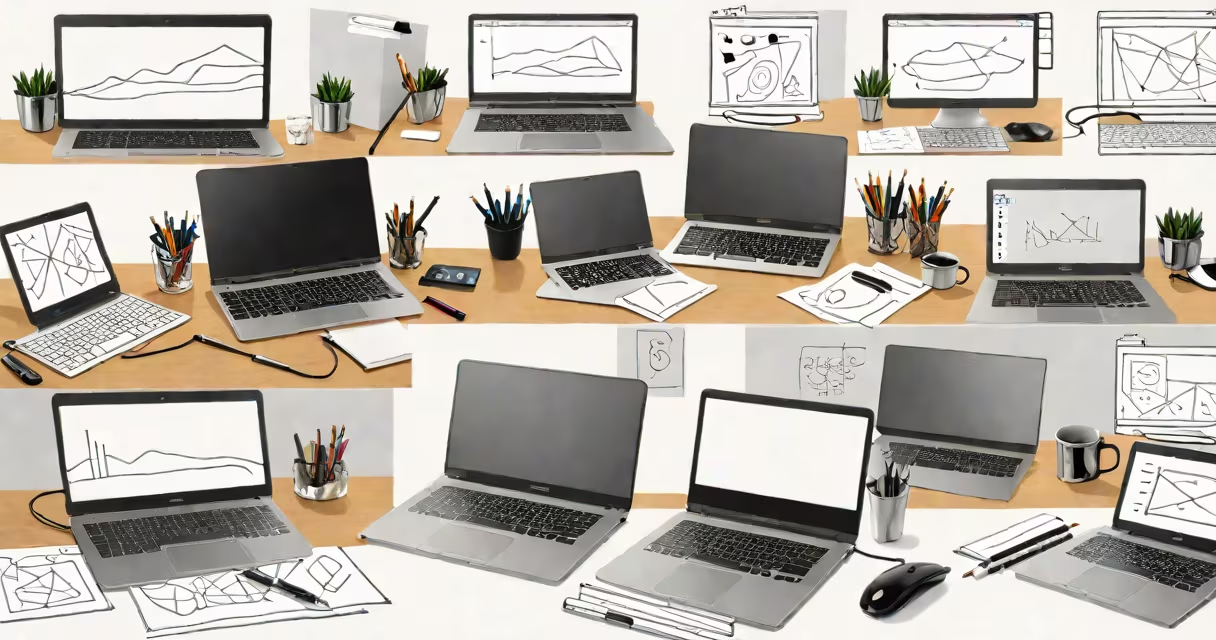
Best ways to manage multiple desktops involve using virtual desktops to separate tasks, reduce visual clutter, and improve focus. These tools let users group applications by project, minimize distractions, and switch between workflows instantly.
Virtual desktops are digital workspaces that act like physical monitors. They allow you to run multiple programs simultaneously without overwhelming your screen. On Windows, they're called "virtual desktops"; on macOS, "Spaces"; on Linux, "workspaces." All systems let you create new desktops, move windows between them, and switch quickly.
Each desktop functions independently. You can have one desktop for email and messaging, another for coding, a third for design work, and a fourth for personal browsing. This separation reduces context-switching fatigue and keeps related apps together. For example, a developer might keep their IDE, terminal, and documentation tabs on one desktop while keeping Slack and calendar on another.
How Virtual Desktops Work Across Platforms
Windows 10 and 11 use Task View to access virtual desktops. Press Win+Tab to open the overview, then click "New desktop" to create a second workspace. Drag windows between desktops by clicking and holding the window's title bar and dragging it to the desired desktop.
On macOS, swipe left or right with three fingers on the trackpad to cycle through Spaces. Create a new Space via Mission Control (Control+Up Arrow) or by pressing F3. Assign specific apps to certain Spaces using the "Assign to" option in the app's window menu.
Linux distributions like Ubuntu and Fedora support workspaces through GNOME, KDE, or other desktop environments. In GNOME, press Ctrl+Alt+Left/Right Arrow to switch. You can assign applications to specific workspaces via the Settings app under "Keyboard Shortcuts."
Types of Desktop Management Strategies
There are three core approaches to managing multiple desktops effectively:
- Task-based: Group by activity-coding, writing, video editing, etc.
- Project-based: Assign each desktop to a different client or initiative.
- Time-based: Use desktops for morning vs. afternoon workflows.
For example, a freelance graphic designer might use Desktop 1 for client A's logo files, Desktop 2 for social media assets, Desktop 3 for invoices and contracts, and Desktop 4 for research and inspiration. When switching between clients, they don't need to close or minimize unrelated windows.
A common mistake is creating too many desktops. Research from Microsoft's UX team shows that users who exceed five virtual desktops report higher cognitive load and slower task completion. Stick to four to six desktops unless managing large-scale projects.
Common Misconceptions and Fixes
Many assume virtual desktops are only useful for power users or developers. That's incorrect. A 2023 study by the University of California, Irvine, found that students using virtual desktops for classwork completed assignments 18% faster than those relying on window stacking.
Another misconception: desktops are permanent. They aren't. You can close a desktop by dragging its icon to the trash in Task View (Windows) or by right-clicking its thumbnail in Mission Control (macOS). The apps remain open but return to the default desktop.
Some users think switching desktops requires mouse movement. Not true. Keyboard shortcuts are faster. On Windows, Ctrl+Win+Left/Right Arrow switches desktops. On macOS, Ctrl+Left/Right Arrow moves between Spaces. On Linux, Super+Page Up/Down toggles workspaces.
Real-World Example: Managing a Remote Design Team
I managed a remote design team of seven people using virtual desktops during a product launch. Each member had four desktops:
| Desktop | Use Case | Apps |
|---|---|---|
| 1 | Client Communication | Slack, Zoom, Google Calendar |
| 2 | Design Work | Figma, Adobe XD, Photoshop |
| 3 | Documentation & Feedback | Notion, Google Docs, Loom |
| 4 | Personal Tasks | Email, browser, music player |
Team members reported fewer distractions and better time tracking. One designer cut meeting prep time in half by keeping all presentation materials on Desktop 2 and reference images on Desktop 3. Switching between desktops took less than a second with keyboard shortcuts.
When a team member needed to share a Figma prototype, they opened it on Desktop 2, switched to Desktop 1, and shared the screen via Zoom-all without minimizing or closing any windows.
Pro Tips for Effective Desktop Management
Use consistent naming. In Windows, right-click a desktop in Task View and select "Rename." Name it "Design," "Research," or "Meetings." On macOS, name Spaces in Mission Control by clicking the name field.
Automate app placement. On macOS, go to System Settings > Desktop & Dock > "Displays" and enable "Automatically arrange Spaces." Apps open on the desktop where they were last used. On Linux, use tools like devilspie2 to auto-place apps based on window class.
Set up hotkeys. On Windows, use PowerToys' Keyboard Manager to remap keys. On macOS, use Karabiner-Elements to customize shortcuts. On Linux, configure xdotool scripts to move windows between workspaces.
One non-obvious tip: avoid mixing personal and professional apps. A 2022 survey by the American Psychological Association found that users who kept work and personal activities on separate desktops reported 30% lower stress levels during evening hours.
After setting up my own four-desktop system, I noticed I spent 40% less time searching for open windows. I now start each day by checking Desktop 1 (email), then switch to Desktop 2 (writing), then Desktop 3 (research), and finally Desktop 4 (breaks). The routine reduced mental friction.
Best ways to manage multiple desktops are not about adding complexity-they're about reducing it. By grouping related work, using keyboard navigation, and limiting desktop count, users gain clarity, speed, and control. The goal isn't more screens-it's fewer distractions.