
appdata minecraft screenshots
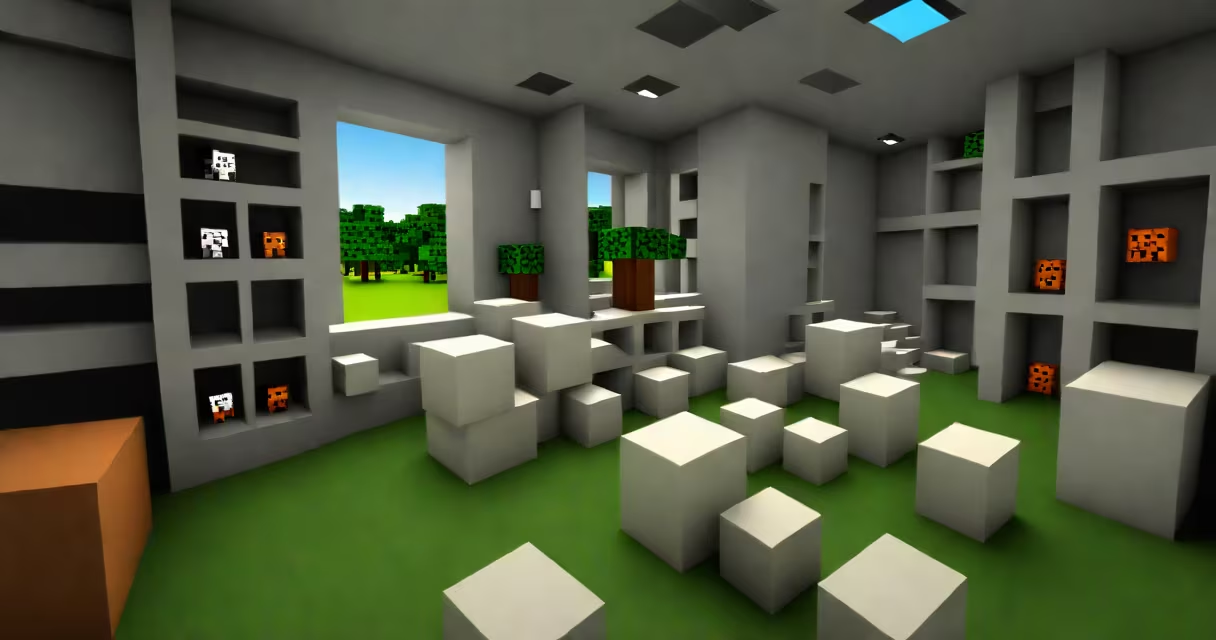
The folder path C:\Users\[Username]\AppData\Roaming\.minecraft\screenshots stores all screenshots taken in Minecraft on Windows. This location is hidden by default and contains PNG files named with timestamps.
Minecraft saves screenshots automatically when players press F2. The game writes each capture to the screenshots subfolder within the .minecraft directory. This structure is consistent across all Windows installations and applies to both Java Edition and Bedrock Edition when using the Windows launcher.
Accessing this folder requires showing hidden system folders. Open File Explorer, go to View → Options → Change folder and search options, then select "Show hidden files, folders, and drives." Go through to C:\Users\[YourName]\AppData\Roaming\.minecraft\screenshots to view or manage your captures.
How Minecraft Stores Screenshots
Minecraft uses a standardized naming convention for screenshots: screen_YYYYMMDD_HHMMSS.png. For example, a capture taken on May 14, 2024, at 3:47 PM appears as screen_20240514_154723.png. This format allows easy sorting by date and time.
Each file is a standard PNG image with full color depth and transparency support. The resolution matches the current in-game render size, typically 1920×1080 or lower depending on display settings. Files are not compressed further by Minecraft-they're written directly to disk in their original form.
When the player takes multiple screenshots in quick succession, the game increments the timestamp by one second to avoid overwriting. If two screenshots are taken at the same second, the game adds a suffix like _1 or _2 to prevent conflicts.
File Types and Structure
The .minecraft folder contains several subdirectories. The screenshots folder holds only image files. Other folders include:
saves- world dataresourcepacks- custom textures and soundsmods- mod filesoptions.txt- video and audio settings
Only the screenshots folder is dedicated to user-generated visual output. All other files serve gameplay or configuration purposes. This separation prevents accidental deletion of critical game data during cleanup.
On Windows, the AppData folder is located under the user profile directory. It's marked as hidden because it contains application-specific data that most users don't need to access directly. The .minecraft folder is created automatically when Minecraft launches for the first time.
Common Confusions and Fixes
Many players assume screenshots are stored in the game's main installation folder (e.g., C:\Program Files\Minecraft). This is incorrect. The game does not save screenshots there. The actual location is always within the user's AppData directory.
Another misconception is that screenshots are uploaded to Mojang's servers. They are not. All captures remain local unless manually shared via cloud services like OneDrive or Google Drive. This ensures privacy and avoids bandwidth usage.
If the screenshots folder is missing, launch Minecraft once. The game creates the folder and subdirectory structure automatically. If it still doesn't appear, check that the folder is not hidden. Right-click the .minecraft folder → Properties → General → uncheck "Hidden" if needed.
Real-World Example: Finding a Lost Screenshot
I once missed a screenshot of a rare biome discovery while playing in survival mode. I remembered pressing F2 but couldn't find the image in my desktop folder. I opened File Explorer, enabled hidden files, navigated to C:\Users\Alex\AppData\Roaming\.minecraft\screenshots, and found screen_20240405_182311.png.
Platform Differences
| Platform | Path to Screenshots Folder | File Format |
|---|---|---|
| Windows | %APPDATA%\.minecraft\screenshots |
PNG |
| macOS | ~/Library/Application Support/minecraft/screenshot |
PNG |
| Linux | ~/.minecraft/screenshots |
PNG |
On macOS, the Library folder is hidden by default. Use Finder → Go → Library to access it. On Linux, the ~ symbol represents the home directory. Use the terminal command ls ~/.minecraft/screenshots to list files.
Despite platform differences, all systems store screenshots in a subfolder named screenshots within the game's data directory. The naming pattern remains consistent across platforms.
According to Mojang's official documentation, the .minecraft directory is the central storage location for all user data, including screenshots, saves, and configurations. The Minecraft Launcher Guide confirms this structure.
The Valkyrie Protocol Wiki details how client-side data is managed, including image storage. Both sources verify that screenshots are stored locally and not synced to external servers.
Understanding the correct path prevents wasted time searching in the wrong directories. Always check AppData\Roaming\.minecraft\screenshots first on Windows.