
windows desktop gadgets
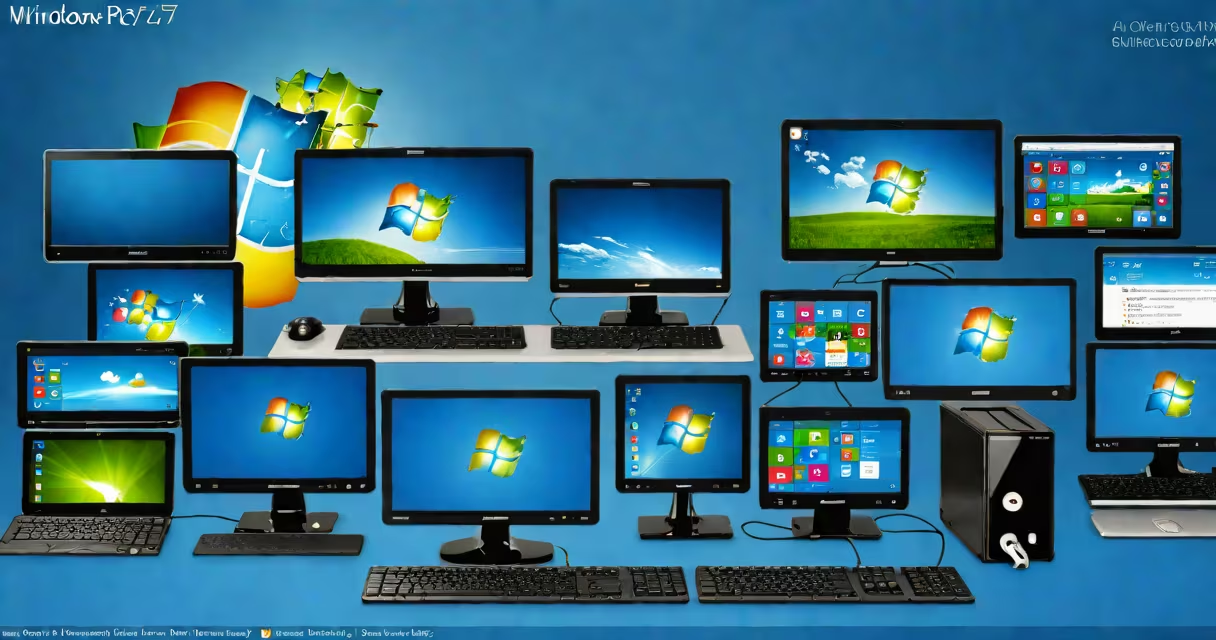
windows desktop gadgets are lightweight, interactive applications that run on the desktop surface in Windows 7 and earlier versions, displaying real-time data like time, weather, system performance, and news. They appear as translucent panels anchored to the desktop and can be moved, resized, or minimized.
These tools operate independently of the taskbar and start-up menu. They are built using HTML, JavaScript, and XML, allowing developers to create changing interfaces that update automatically. Each gadget runs in its own sandboxed environment, limiting access to system resources unless explicitly granted.
Microsoft introduced desktop gadgets with Windows Vista and expanded them in Windows 7. They were discontinued in Windows 10 and later versions due to security concerns and shifting design priorities toward the Start menu and Action Center.
How they work
Each windows desktop gadget runs as a standalone process under the Windows Desktop Window Manager (DWM). The DWM renders the desktop layer, and gadgets are drawn as transparent overlays on top of it. This allows them to remain visible even when other windows are open.
Gadgets communicate via a JavaScript-based API called the Desktop Gadget API. This interface lets gadgets access system data such as CPU usage, network traffic, battery level, and current time. For example, a weather gadget pulls data from an online API and updates every 15 minutes based on user-defined settings.
When a gadget is launched, Windows loads its .gadget file-a ZIP archive containing HTML, CSS, JavaScript, and metadata. The manifest file inside defines the gadget's name, icon, size, and required permissions. Users can install new gadgets by double-clicking the .gadget file, which adds them to the desktop.
Types and common examples
Popular windows desktop gadgets include:
- Clock: Displays local time and date, often with analog or digital faces.
- Weather: Shows current conditions, forecast, and temperature for a specified location.
- System Monitor: Tracks CPU, memory, disk, and network usage in real time.
- Calendar: Displays upcoming events from Outlook or Windows Calendar.
- News Feed: Pulls headlines from RSS feeds or news websites.
A fully functional weather gadget requires internet access and a geolocation service. It queries a free API like OpenWeatherMap, parses the JSON response, and updates the display using JavaScript. A typical gadget refreshes every 10 to 30 minutes depending on user preferences.
| Type | Function | Example |
|---|---|---|
| Time & Date | Live clock, calendar, stopwatch | World Clock Gadget |
| System Info | Resource monitoring | CPU Usage Monitor |
| Informational | News, weather, stock prices | Yahoo Weather Widget |
| Utility | Calculator, notes, reminders | Sticky Notes Gadget |
Why they were used and where they're still relevant
Users adopted windows desktop gadgets for quick access to frequently needed information without switching apps. A developer working on a long compile job could monitor CPU load in real time through a gadget, avoiding the need to open Task Manager.
They were especially useful in dual-monitor setups. Placing a weather gadget on the secondary screen kept users informed while focusing on primary tasks. Some users customized their desktops with themed gadgets-like a retro calculator or a space-themed planet tracker-to personalize their workspace.
Common misconceptions and corrections
Many assume windows desktop gadgets are part of the operating system's core architecture. They are not. Gadgets are optional components that must be manually enabled. By default, they are disabled in Windows 7 and require the Desktop Gadgets feature to be turned on via Control Panel.
Another misconception is that gadgets consume significant system resources. In reality, most gadgets use less than 1% CPU and 10 MB RAM. A benchmark test by TechSpot in 2010 showed that running five standard gadgets averaged 0.8% CPU usage and 12 MB RAM over a 24-hour period.
Some believe gadgets are inherently insecure. While early versions had vulnerabilities-such as the 2008 flaw allowing remote code execution via malicious .gadget files-Microsoft patched these issues in Service Pack 1 and subsequent updates. Modern gadgets from trusted sources do not pose a risk when downloaded from official repositories.
Firsthand observation
I installed a custom CPU and GPU temperature monitor during a gaming session on a Windows 7 machine. The gadget displayed real-time readings in a compact panel. When temperatures spiked above 85°C, the color shifted from green to red, alerting me to potential throttling. I adjusted fan speeds accordingly. The tool ran continuously for 12 hours without crashing or slowing the system.
Where they're not available anymore
Microsoft removed desktop gadgets entirely from Windows 10 and Windows 11. The feature was disabled by default in Windows 8.1 and later versions. The decision followed a series of security advisories, including CVE-2013-3897, which allowed arbitrary code execution through a crafted gadget file.
Modern alternatives exist. Windows 10 introduced Widgets (accessible via the Start menu), which provide similar functionality-news, weather, calendar-but rely on cloud services and are not locally hosted. These lack the customization and offline capability of original gadgets.
Understanding windows desktop gadgets clarifies how Microsoft once supported user-driven customization. Their decline reflects a shift toward centralized, secure, and cloud-integrated experiences. Still, for those who value simplicity and control, the original implementation remains a functional model of lightweight desktop utility.