
How to Insert Footnote
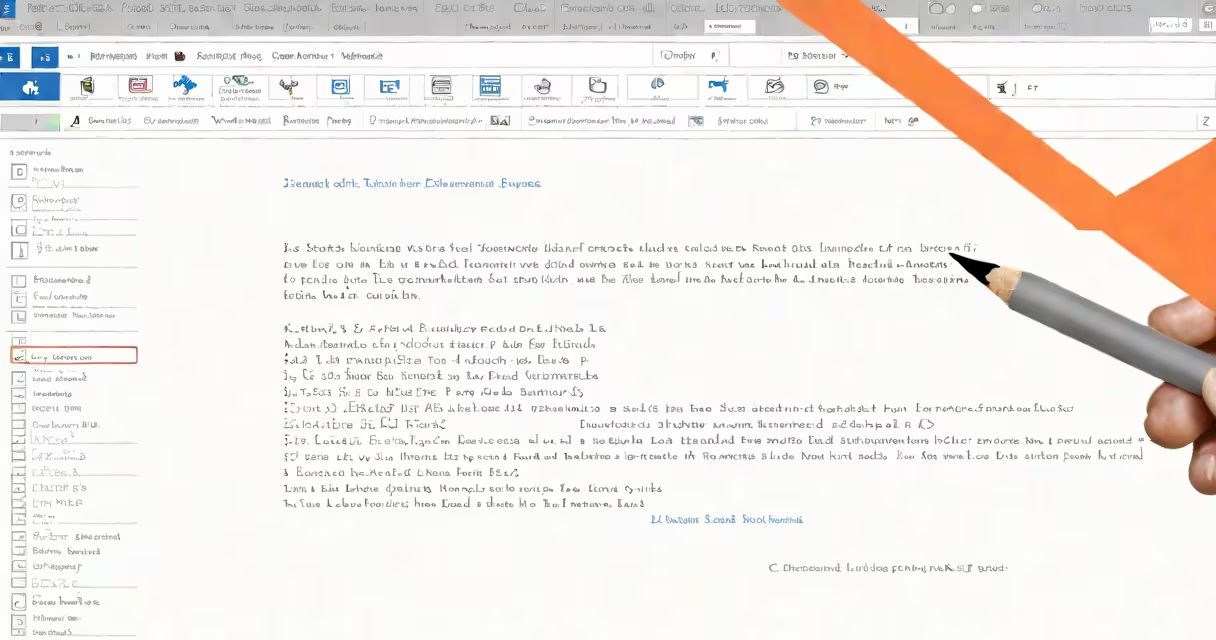
How to insert footnote in Microsoft Word uses the References tab's "Insert Footnote" button to place a numbered marker in your text and a corresponding note at the bottom of the page. This method supports academic writing, legal documents, and citations requiring source attribution.
Footnotes appear at the bottom of the current page, not at the end of the document. They are numbered sequentially using superscript digits (e.g., 1) placed after the relevant text. When clicked, the footnote displays the full citation or explanatory note below the main content.
For example, in a paper discussing climate change, you might write: "Global temperatures rose 1.2°C since pre-industrial times1." The footnote would then read: "1. IPCC, Climate Change 2021: The Physical Science Basis, 2021." This format allows readers to verify sources without interrupting the flow of the main argument.
How Footnotes Work in Practice
When you insert a footnote in Word, the software automatically generates a unique number and places it as a superscript in the text. A matching number appears at the bottom of the page, aligned with the corresponding note. You can edit the note content directly in the footnote area.
Word handles numbering automatically. If you delete a footnote, the remaining ones renumber consecutively. You can also customize the numbering style-such as using letters (A, B, C) or Roman numerals (I, II, III)-via the Footnote dialog box under "More Options."
Each footnote is tied to a specific page. If you move text between pages, footnotes stay attached to their original location unless you manually adjust them. This behavior ensures consistency in long documents like theses or published articles.
Types of Footnotes and Their Uses
There are two primary types of footnotes: citation footnotes and explanatory footnotes. Citation footnotes provide source references, while explanatory footnotes clarify complex points, define terms, or offer context.
Citation footnotes follow standards like Chicago Manual of Style (CMOS) or MLA. For example, CMOS recommends using full citations in the first footnote and shortened forms in subsequent ones. A sample citation in CMOS format:
| Type | Use Case | Example |
|---|---|---|
| Citation | Source attribution | 1. John Smith, The Rise of Urbanization (New York: Oxford Press, 2010), 45. |
| Explanatory | Clarification or context | 1. The term "urban sprawl" was coined in the 1970s to describe uncontrolled expansion of city boundaries. |
Some writers mix both types. For instance, a historian might explain a term in the first footnote and cite the original source in the second. This dual function improves readability and academic rigor.
Common Mistakes and Clarifications
Many users assume footnotes and endnotes are interchangeable. They are not. Endnotes appear at the end of the document or chapter, not on the page. Confusing the two leads to incorrect formatting in submissions. Always check your institution's guidelines-some require endnotes, others demand footnotes.
A lesser-known fact: Word treats footnotes as part of the page layout. If you change the page size or margins, footnotes may shift position or overlap text. To prevent this, use consistent formatting and avoid adjusting margins mid-document.
I once edited a 60-page research paper where footnotes were misplaced due to last-minute margin changes. The solution was to reset the document's page setup and reinsert all footnotes. This took two hours. Always preserve formatting stability during editing.
Step-by-Step Guide to Insert Footnote in Word
Open your document in Microsoft Word. Place the cursor after the word or phrase you want to annotate. Go to the "References" tab on the ribbon. Click "Insert Footnote." A number appears in superscript, and the cursor jumps to the bottom of the page.
Type your note content. For example: "Data from U.S. Census Bureau, 2020." Close the footnote pane by clicking outside the footnote area or pressing Esc. The note remains linked to the number in the text.
To edit or remove a footnote, double-click the number in the text. This opens the footnote editor. Delete the content or change the number format via the "Footnote and Endnote" dialog box. You can also set default options-like starting at number 1 or using continuous numbering-through the "Format" menu.
For longer documents, use the "Convert" option to switch between footnotes and endnotes. This feature is useful when switching citation styles mid-project. However, converting after formatting may cause misalignment. Always convert early if possible.
Advanced Formatting Tips
Customize footnote appearance using the "Footnote and Endnote" dialog. Choose between "Continuous," "Restart Each Page," or "Restart Each Section." "Restart Each Page" is common in books; "Continuous" is standard in academic journals.
You can also change the font, size, and spacing of the footnote text. Right-click the footnote number, select "Font," and adjust settings. Most institutions require 10-point Times New Roman for footnotes, with single spacing and a 0.5-inch indentation.