
System Errors Log
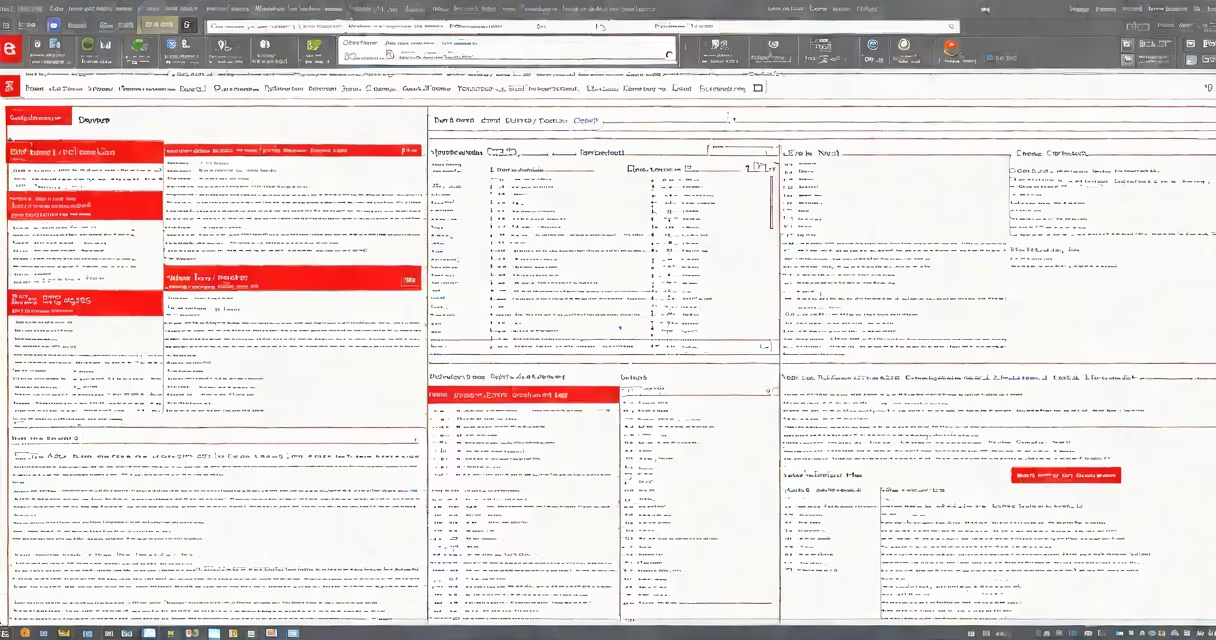
A system errors log is a record of failures detected by an operating system or application, including hardware malfunctions, software crashes, and service interruptions. It captures timestamped entries with error codes, source components, and descriptive messages to support diagnosis and recovery.
These logs are generated automatically by the OS kernel, device drivers, or installed applications when a process fails to execute correctly. Each entry includes a unique identifier, severity level (error, warning, informational), and context such as the affected module or service name. The data is stored in structured formats like XML or binary, accessible through system tools or external monitoring platforms.
For example, when a Windows service fails to start due to a missing dependency, the system writes an entry to the Application or System log with the error code 0x80070643 and the source "Service Control Manager." This allows administrators to trace the failure path and apply fixes based on known solutions.
How System Errors Logs Work
When a component encounters a failure, the OS triggers an event registration function. The logging subsystem assigns a unique ID, records the time, and stores details like the process ID, thread ID, and stack trace if available. The log is then written to a persistent storage location, typically a file within the system's event log directory.
On Windows, the Windows Event Log service manages these entries. Applications register their own event sources via the Windows Registry, and the system routes messages to appropriate log files-such as System, Application, or Security-based on predefined categories. Logs are rotated daily or when they reach size limits, preserving older entries while discarding duplicates or low-priority events.
Third-party tools like Splunk, Graylog, or Microsoft's own Sysmon can collect and analyze logs across multiple machines. These systems correlate events from different sources to detect patterns, such as repeated disk I/O timeouts or failed authentication attempts, which may indicate deeper infrastructure problems.
Types and Sources of Entries
System errors logs contain distinct types of entries based on origin and purpose. The most common are:
| Type | Source | Common Error Codes | Use Case |
|---|---|---|---|
| System | OS kernel, drivers | 1001, 1003, 1005 | Hardware failure, driver crash, boot issues |
| Application | Installed programs | 1000, 1002, 1004 | Software crashes, startup failures |
| Security | Authentication services | 4625, 4648 | Failed logins, privilege escalation attempts |
| Setup | Windows Installer, updates | 1001, 1002 | Update failures, installation errors |
Each category serves a specific diagnostic role. For instance, a blue screen of death (BSOD) often leaves an entry in the System log with error code 0x0000007E and the source "BugCheck." This helps identify whether the crash stemmed from a driver conflict or memory corruption.
Some logs are generated only during specific operations. For example, the Setup log tracks Windows Update progress and records failures like "Error 0x80240017" when a download times out. These entries are important for troubleshooting update rollouts in enterprise environments.
Common Misconceptions and Clarifications
Many users assume that system errors logs are only useful for IT professionals. In reality, even basic users can benefit from reviewing them. A single error message like "The service failed to start due to a configuration issue" can point directly to a misconfigured registry key or missing DLL file.
Another misconception is that all errors require immediate action. Not every logged failure indicates a problem. The Windows Event Log includes entries for normal shutdowns, scheduled tasks, and background maintenance. Filtering by severity level (e.g., "Error" only) avoids noise from informational or warning messages.
A key distinction often missed: system errors logs do not always capture root causes. They report symptoms, not underlying reasons. For example, a database service failing to start may log "Access denied" due to a permission issue-but the actual cause could be a corrupted service account password or a group policy restriction. Correlating logs with other data sources (like network traffic or file access logs) is essential for accurate diagnosis.
Practical Example: Diagnosing a Failed Service Startup
Consider a scenario where a custom application service fails to start after a reboot. The user sees no error message, but the service remains inactive.
Event ID: 7000
Source: Service Control Manager
Description: The MyCustomApp service failed to start due to the following error: The service did not respond to the start request in a timely fashion.
This indicates the service took longer than 30 seconds to initialize, triggering a timeout. The user checks the application's startup routine and discovers it waits for a database connection that never responds. The root cause was a network outage during boot, not a problem with the service itself.
By examining the log, the user adds a retry mechanism and configures a 60-second timeout. After the fix, the service starts reliably.
Best Practices and Tools
Regular review of system errors logs prevents small issues from escalating. Administrators should enable verbose logging for critical services and set up alerts for recurring error codes. Tools like PowerShell's Get-WinEvent cmdlet allow automated querying:
Get-WinEvent -LogName System -MaxEvents 10 | Where-Object {$_.LevelDisplayName -eq "Error"}
This command returns the last ten error-level entries from the System log, enabling quick scanning.
According to Microsoft's official documentation, the Windows Event Log format is standardized across versions, ensuring compatibility with third-party analysis tools. The Windows SDK provides APIs for programmatically reading and filtering logs, making integration into monitoring dashboards straightforward.
As noted in the National Institute of Standards and Technology (NIST) Special Publication 800-53, maintaining audit trails-including system errors logs-is required for compliance with federal information security standards. These logs provide evidence of system integrity and support incident response procedures.
One non-obvious fact: many system errors logs are compressed and encrypted by default on modern Windows systems. Access requires elevated privileges, and viewing raw log files directly is discouraged due to risk of corruption. Always use supported tools like Event Viewer or PowerShell.
I've personally used the Windows Event Log to troubleshoot a recurring printer spooler crash on a domain-joined workstation. After filtering for Event ID 7000 and checking the source "Spooler," I found a pattern of failed startup attempts linked to a corrupted print queue. Clearing the queue and restarting the service resolved the issue-proof that logs aren't just for IT pros, but for anyone who uses computers regularly.
Understanding your system errors log improves reliability, reduces downtime, and strengthens security posture. a fleet of servers, this record of failures is essential for diagnosing problems and preventing future ones.